

This article will show you how to join your Vintage Story Server.
Click here to order your Vintage Story server with Citadel Servers today!
Log in to your Game Control Panel.
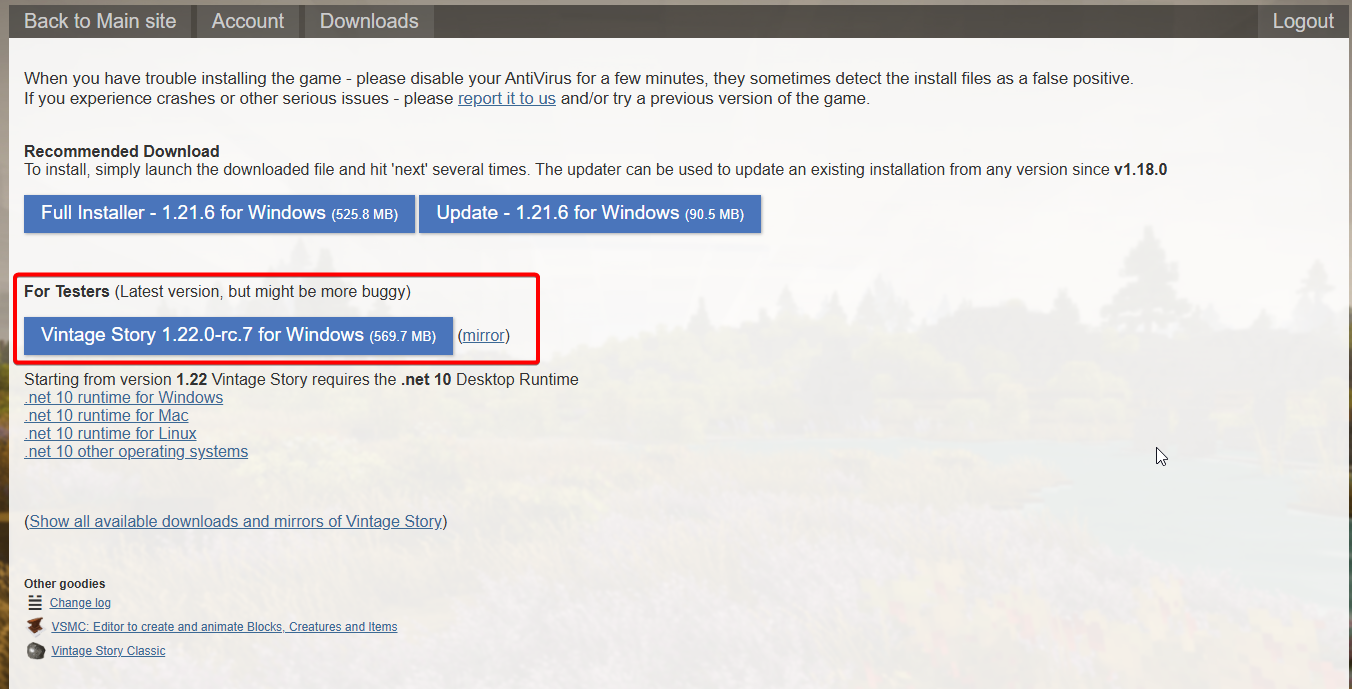
Open the Vintage Story Downloads Page in a new tab.
If the server version you want to install is listed as "For Testers".
Then our Installer will usually fail to install it. In this case, we will install it manually.
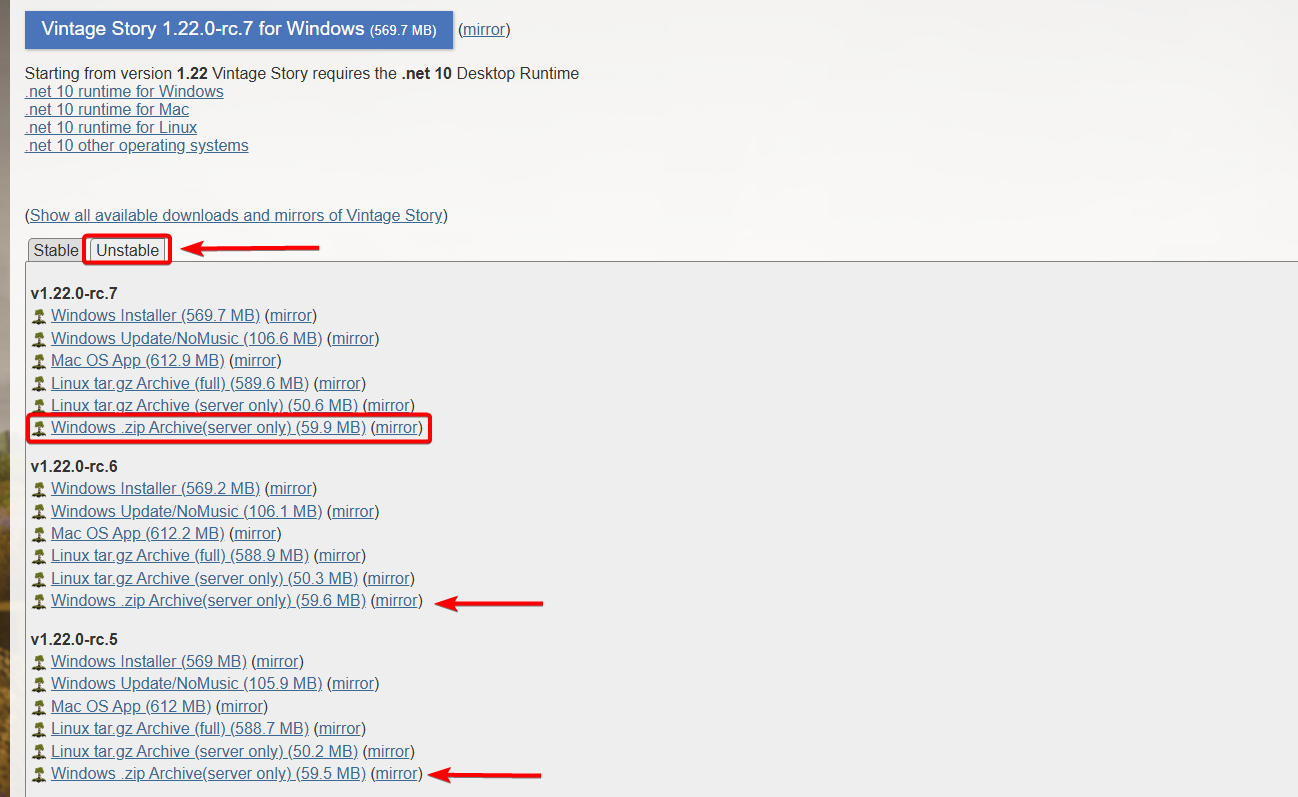
Scroll down the page, and select the "Unstable" section. Find the version you want to play.
Select and download the bottom option of it that says "Windows_zip_Archive(server_only)".
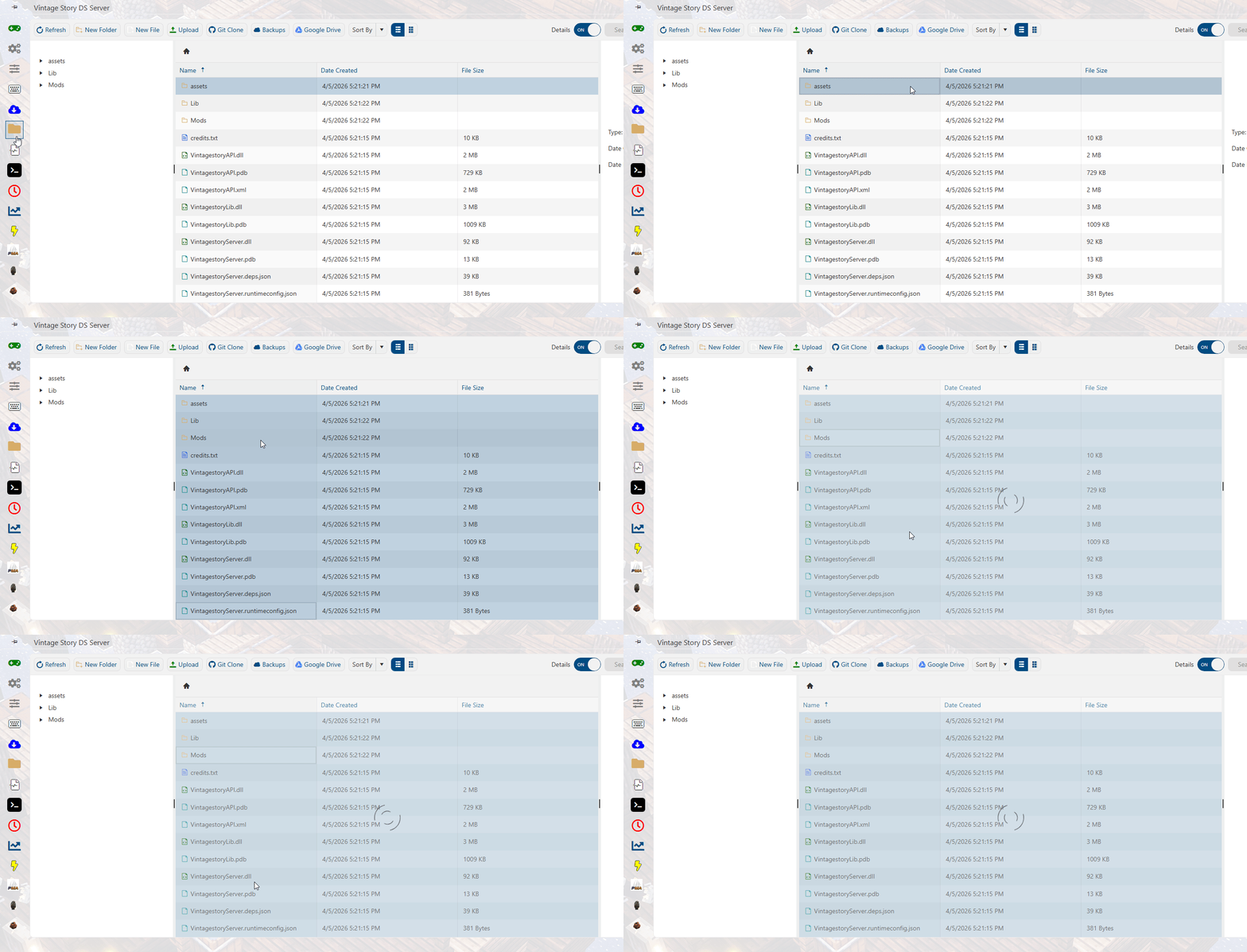
Once downloaded, open the Control Panel page's File Manager, and delete all files inside.
If you have a saved world you want to continue, create a backup and download it to your PC to restore later.
This is to ensure compatibility and server stability, since old files may cause issues in the server runtime.
You can skip this step, but it is highly recommended that you do this.
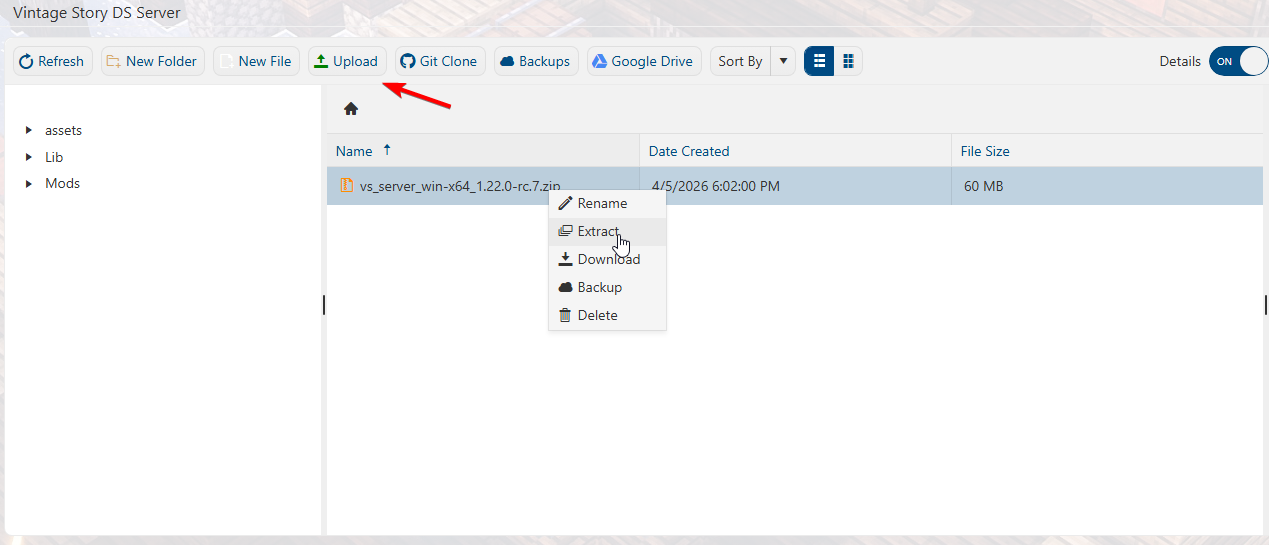
Once everything is deleted, upload the zip file. Right-click it, then select extract.
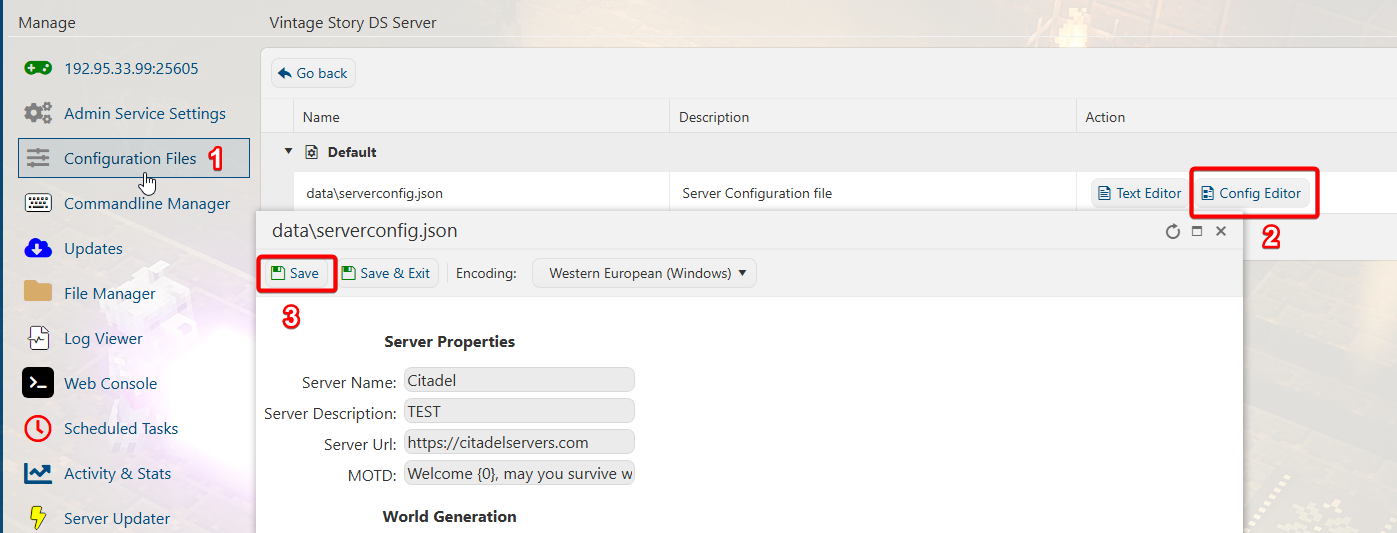
When it finishes extracting, we now need to go to the Configuration Files tab to regenerate the config.
The default config file will be set for the game's default ports. Which may not be the same as your server's ports.
We need to regenerate the file so that it uses the server's assigned ports instead.
If you want to edit the config, you can do so here as well. Hit save, and it will recreate the config file with the correct ports.
You can now start the server with the latest unstable build.
Did the above information not work for you?
Please click here to contact our support via a ticket.
This is to ensure compatibility and server stability, since old files may cause issues in the server runtime.
You can skip this step, but it is highly recommended that you do this.
Once everything is deleted, upload the zip file. Right-click it, then select extract.
When it finishes extracting, we now need to go to the Configuration Files tab to regenerate the config.
The default config file will be set for the game's default ports. Which may not be the same as your server's ports.
We need to regenerate the file so that it uses the server's assigned ports instead.
If you want to edit the config, you can do so here as well. Hit save, and it will recreate the config file with the correct ports.
You can now start the server with the latest unstable build.
Did the above information not work for you?
Please click here to contact our support via a ticket.
